Voice Dictation
Voice dictation is VocalFlow’s core feature: press a hotkey anywhere, speak, and refined text lands at your cursor. This page covers every part of that flow in depth.
Hotkeys
Section titled “Hotkeys”- Default: a single tap of the right ⌘ key toggles recording — press once to start, press again to stop.
- The hotkey is fully customizable in Settings: any key combination, or a single modifier key on its own (like right ⌘ or right ⌥).
- A separate hotkey (default ⌥/) starts Live Typing Mode instead.
Menu bar middle-click action
Section titled “Menu bar middle-click action”You can bind a quick action to middle-clicking the menu bar icon (Settings → Global Shortcuts). Options: open the Overview window, start/stop dictation, or start a Voice Memo recording. Default is no action; left-click always opens the menu as usual.
The floating window
Section titled “The floating window”While recording, a small window floats near the bottom of the screen:
| State | What you see |
|---|---|
| Recording | Scrolling waveform + live transcription. Finalized text is upright; undecided text is italic gray. |
| Processing | After you stop: a processing indicator while the AI refines your words. |
| Done | The text is injected at your cursor and the window disappears. |
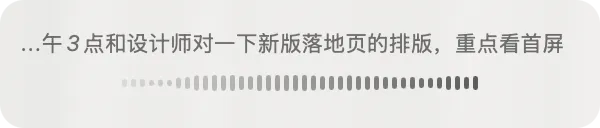 Recording state: live transcription above the waveform.
 Processing state: refinement in progress, just before injection.
The live text exists only in the floating window. Your document is never touched until the final injection — no flicker, no half-finished text.
AI refinement
Section titled “AI refinement”When you stop recording, the raw transcript goes through LLM refinement: filler words, repetitions, and slips of the tongue are removed; grammar and formatting are cleaned up. The refined text is what gets injected.
Short utterances skip refinement. Anything below the length threshold (default: 15 characters/words, adjustable in Settings) injects the raw transcript immediately — short commands and quick replies should never wait.
Subscribers can additionally re-render any past recording with alternative refinement presets (closer-to-verbatim, technical style) from the history detail panel — see History & Search.
How injection works
Section titled “How injection works”VocalFlow inserts text at your cursor using a clipboard-based mechanism:
- It snapshots your current clipboard.
- It puts the refined text on the clipboard and simulates ⌘V.
- It restores your original clipboard contents.
Your clipboard is left as it was. If injection fails (some apps block simulated pasting), the text stays in the clipboard and VocalFlow notifies you to paste manually with ⌘V — your words are never lost.
Canceling: ESC
Section titled “Canceling: ESC”Press ESC during recording, then press ESC again to confirm. The recording is discarded and nothing is injected. The two-step confirmation prevents an accidental keypress from destroying a long dictation.
When things go wrong: graceful fallback
Section titled “When things go wrong: graceful fallback”VocalFlow’s rule is never make you wait, never lose your words:
- Refinement timeout (default 15 s, adjustable), server error, or disconnection → VocalFlow automatically injects the accumulated raw live transcript instead of the refined text. Such entries are marked “raw transcript” in the history.
- Network drops mid-recording → audio capture continues uninterrupted. Connectivity problems are only ever a notice, never a stop.
- Every recording is saved locally first, regardless of transcription success. You can replay it, export WAV, or re-transcribe it later.
Related pages
Section titled “Related pages”- Live Typing Mode — direct-to-cursor typing without refinement
- Context-Aware Transcription — how screen context improves recognition
- Shortcuts & Settings — the full hotkey and settings reference