Shortcuts & Settings
Default hotkeys
Section titled “Default hotkeys”All hotkeys are global (they work in any app) and fully customizable in Settings → Global Shortcuts. Any combination — or a single modifier key on its own — can be assigned.
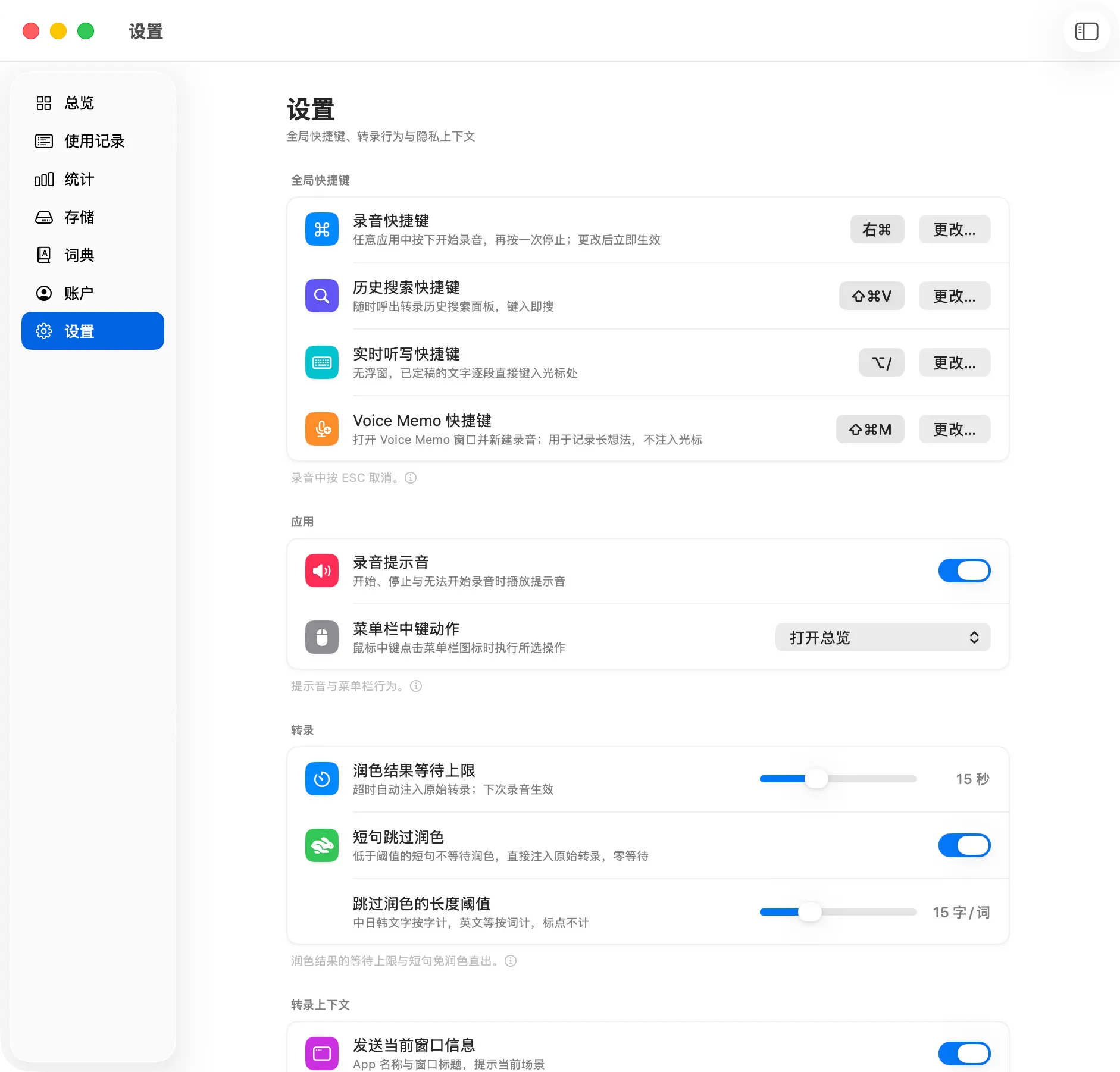 The Global Shortcuts section in Settings: dictation (右⌘ = right ⌘), history search (⇧⌘V), live typing (⌥/), and Voice Memo (⇧⌘M), each with a change button.
| Hotkey | Action |
|---|---|
| Right ⌘ (single tap) | Start / stop voice dictation |
| ⌥/ | Start / stop Live Typing Mode |
| ⌘⇧M | Open Voice Memo and start recording immediately |
| ⌘⇧V | Open the global history search floating window |
| ESC, ESC (while recording) | Cancel the current dictation (press twice to confirm) |
Menu bar icon
Section titled “Menu bar icon”| Input | Action |
|---|---|
| Left click | Open the VocalFlow menu |
| Middle click | Configurable quick action: open Overview / start・stop dictation / start Voice Memo (default: none) |
Main settings
Section titled “Main settings”A quick map of what you can adjust, grouped as in the Settings window:
| Setting | Default | Notes |
|---|---|---|
| Dictation hotkey | Right ⌘ | Any combo or single modifier key |
| Live typing hotkey | ⌥/ | Independent from the dictation hotkey |
| Voice memo hotkey | ⌘⇧M | Opens window + starts recording |
| History search hotkey | ⌘⇧V | Available at any time |
| Menu bar middle-click action | None | Overview / dictation / voice memo |
| Refinement timeout | 15 s | On timeout, the raw transcript is injected instead |
| Short-phrase threshold | 15 chars/words | Below this, refinement is skipped for zero-wait injection |
| Window info context | On | See Context-Aware Transcription |
| Editor text context | On | Secure input fields are always skipped |
| Screenshot OCR context | On | Needs Screen Recording permission; skipped silently otherwise |
| Storage management | — | Usage breakdown, clear audio, clear by age (with confirmation) |
| Permissions section | — | Live status of all three permissions + shortcuts to System Settings |
| Re-run setup wizard | — | At the bottom of the settings page |
Related pages
Section titled “Related pages”- Voice Dictation — what each dictation setting affects in detail
- Permissions & Setup Wizard