Your First Dictation
This page walks you through your first complete dictation, from login to text landing at your cursor.
1. Log in
Section titled “1. Log in”VocalFlow signs you in through your browser — there is no password to create.
- Click the menu bar icon and choose the login entry (or use step 4 of the setup wizard).
- Your browser opens the VocalFlow login page. Enter your email address and the verification code sent to it.
- Click Authorize on the connect page. The browser bounces you back to the app, and you are logged in.
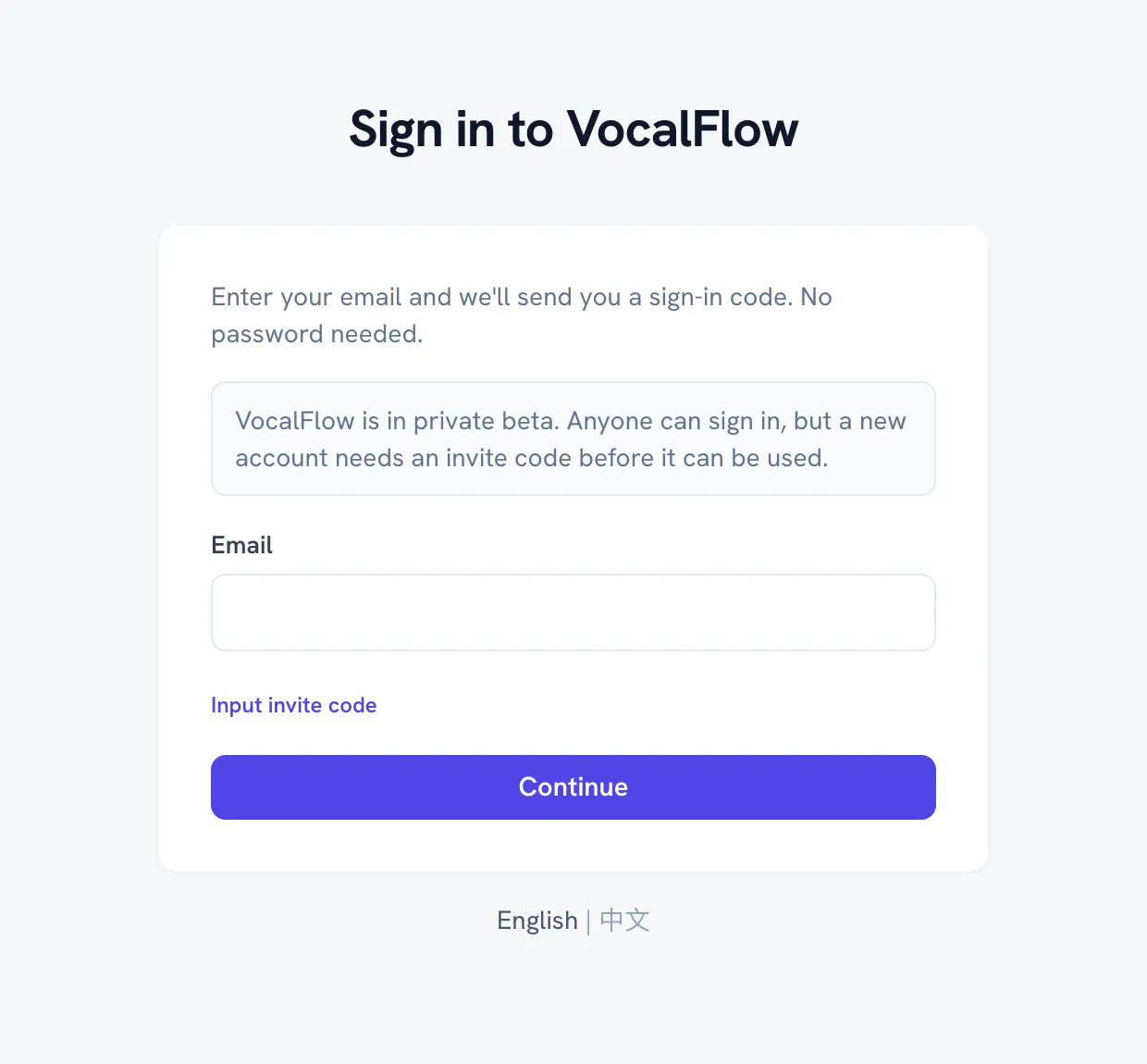 The sign-in page. Enter your email to receive a code — no password exists.
Your access token is stored in the macOS Keychain — VocalFlow never writes it to a plain file.
2. Place your cursor
Section titled “2. Place your cursor”Click into any text field — a Slack message box, a document, a code comment, a browser form. The refined text will be inserted wherever your cursor is when the dictation finishes.
3. Press the hotkey and speak
Section titled “3. Press the hotkey and speak”Tap the right ⌘ key (the default dictation hotkey). A floating window appears near the bottom of the screen. While you speak, it shows:
- a scrolling waveform of your voice, and
- the live transcription: text the engine has finalized appears in regular style; text still being decided appears in italic gray and may still change.
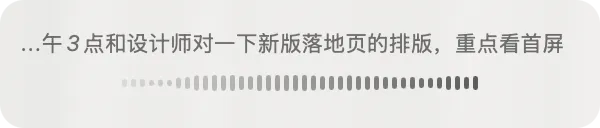 The floating window while recording: live transcription on top, your voice’s waveform below.
The live text is only shown in the floating window — nothing touches your document yet.
4. Stop and watch the text arrive
Section titled “4. Stop and watch the text arrive”Tap the right ⌘ key again to stop. The floating window switches to a processing state while the AI refines your words — removing filler, fixing grammar, and formatting the result. After a moment, the text is injected at your cursor in one paste, and the floating window disappears.
 The processing state: the AI is refining your words. The window disappears as soon as the text lands at your cursor.
That is the whole loop: hotkey → speak → hotkey → text at cursor.
Canceling a dictation
Section titled “Canceling a dictation”Press ESC while recording to cancel. VocalFlow asks you to press ESC a second time to confirm, so a stray keypress cannot throw away your words. A canceled recording injects nothing.
Good to know on your first run
Section titled “Good to know on your first run”- Short phrases arrive instantly. Utterances below the length threshold (default: 15 characters/words) skip AI refinement and inject the raw transcript with zero wait.
- A bad network never eats your words. If refinement times out or the connection drops, VocalFlow injects the accumulated raw transcript instead. The recording is also saved locally, so you can always replay or re-transcribe it.
- First dictation feels slow? The first session after launch includes engine warm-up; subsequent dictations start faster.
Next steps
Section titled “Next steps”- Voice Dictation in depth — hotkey customization, injection details, fallback behavior
- Shortcuts & Settings — all default hotkeys at a glance