Installation
Download
Section titled “Download”Download the latest VocalFlow DMG from vocalflow.app. The file is named VocalFlow-<version>.dmg.
Install
Section titled “Install”- Open the downloaded DMG.
- Drag VocalFlow into your Applications folder.
- Eject the DMG.
First launch
Section titled “First launch”Open VocalFlow from the Applications folder. Two things to know:
-
VocalFlow is a menu bar app. After launch, look for the VocalFlow icon in the menu bar at the top-right of your screen. There is no Dock icon and no main window opens by itself.
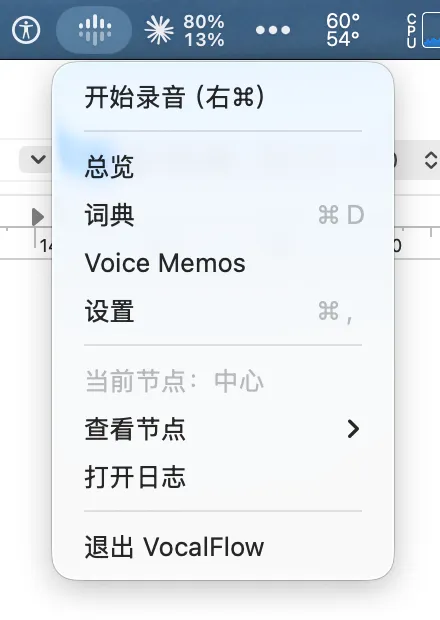 The VocalFlow icon and its menu. Top to bottom: start recording (right ⌘), Overview, Dictionary, Voice Memos, Settings, current node info, and Quit. (App UI is currently Chinese; localization is planned.)
 -
On first launch, the setup wizard appears to walk you through permissions, login, and a test dictation. See Permissions & Setup Wizard.
If macOS blocks the app (Gatekeeper)
Section titled “If macOS blocks the app (Gatekeeper)”Official releases are signed and notarized, so macOS normally opens them without complaint. If you see a warning that the app “cannot be opened” (common with beta builds):
- Open System Settings → Privacy & Security.
- Scroll down to the security section. You will see a message that VocalFlow was blocked.
- Click Open Anyway and confirm.
You only need to do this once. If there is no Open Anyway button, Control-click the app in the Applications folder and choose Open from the context menu.
Updating
Section titled “Updating”Replace the app in the Applications folder with the new version from the latest DMG. Your recordings, history, settings, and login are kept — they are stored separately in your user library, not inside the app bundle.